 Synote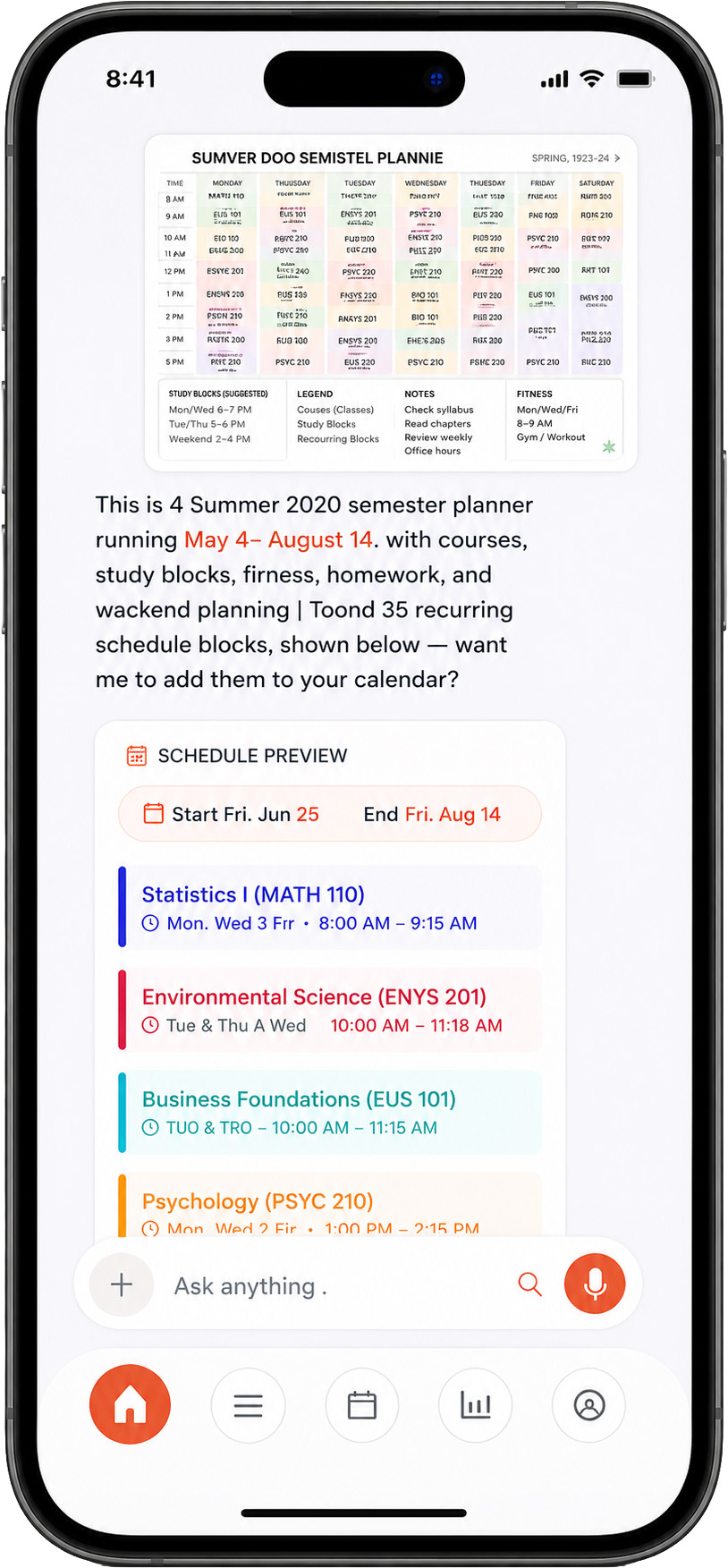
Typing a whole timetable into a calendar app is the kind of job everyone puts off. A semester of classes can mean thirty or more entries, each with a day, a start and end time, a room and an end date. Synote does that reading for you: you give it a picture, it gives you the events.
How photo-to-calendar works in Synote
- Take a photo or pick a screenshotTap +, then Take a Photo for something in front of you, or Upload a photo for a screenshot or saved image.
- Synote reads the scheduleIt finds each item and its day, start and end time, and location. A class that appears every Monday and Wednesday becomes one repeating event, not a pile of copies.
- It asks only what the picture can't tell itTimetables rarely say when the term starts or ends, so Synote asks — for example “When does this semester end?” — instead of guessing.
- Check the preview, tap SaveYou see every event before anything is written. Nothing is saved until you tap Save, and Synote checks for clashes with what's already in your calendar first.
What you can photograph
Anything where the schedule is printed or typed clearly works well:
- Class and university timetables — weekly grids with rooms and course codes.
- Work shift rosters — a photo of the schedule pinned in the staff room.
- Kids' school, sports and activity schedules — practice times, games, term dates.
- Event posters and flyers — a concert, a workshop, a community event.
- Invitations and screenshots — a wedding invite, an email or a message that contains a date and time.
Synote keeps the place out of the title and puts it in the event's location, so “Biology 101 (Room 204)” becomes the event Biology 101 at Room 204.
Why not just retype it?
Because the slow part isn't typing one event — it's the repetition and the details. With a photo, Synote handles the parts people usually get wrong:
- Repeats: each weekly class is created once, as a repeating event, with an end date.
- Times: start and end times come from the grid, so your day view shows real gaps between classes.
- Clashes: before saving, Synote checks the new events against what you already have.
- Reminders: after saving, it offers a reminder for all of them at once — 5, 10 or 30 minutes before, or a day ahead.
Tips for the best result
- Photograph the schedule straight on, with the whole grid in the frame and no glare.
- A screenshot of a digital timetable is even better than a photo of a screen.
- For a very long schedule, send one week or one page at a time.
- If something is unclear, just reply in the chat — “the lab is actually at 2pm” — and Synote updates the preview.
Frequently asked questions
Can I turn a picture of my class schedule into calendar events on iPhone?
Yes. In Synote, tap + then Take a Photo or Upload a photo. Synote reads the timetable, creates each class with its day, time and room, and turns weekly classes into repeating events. You review a preview and tap Save.
Does it work with screenshots?
Yes. Screenshots of a timetable, an email, a message or an invitation work just like photos — often better, because the text is sharp.
What if the photo doesn't show the start or end date of the term?
Synote asks you. It never invents a date it can't see; it asks a short question such as when the semester ends, then sets the repeats to stop on that date.
Will it add events without asking me?
No. You always see a preview first, and nothing is saved until you tap Save.
Is Synote free?
Synote is free to download on the App Store and you can try the AI features for free. A Pro subscription unlocks unlimited use.